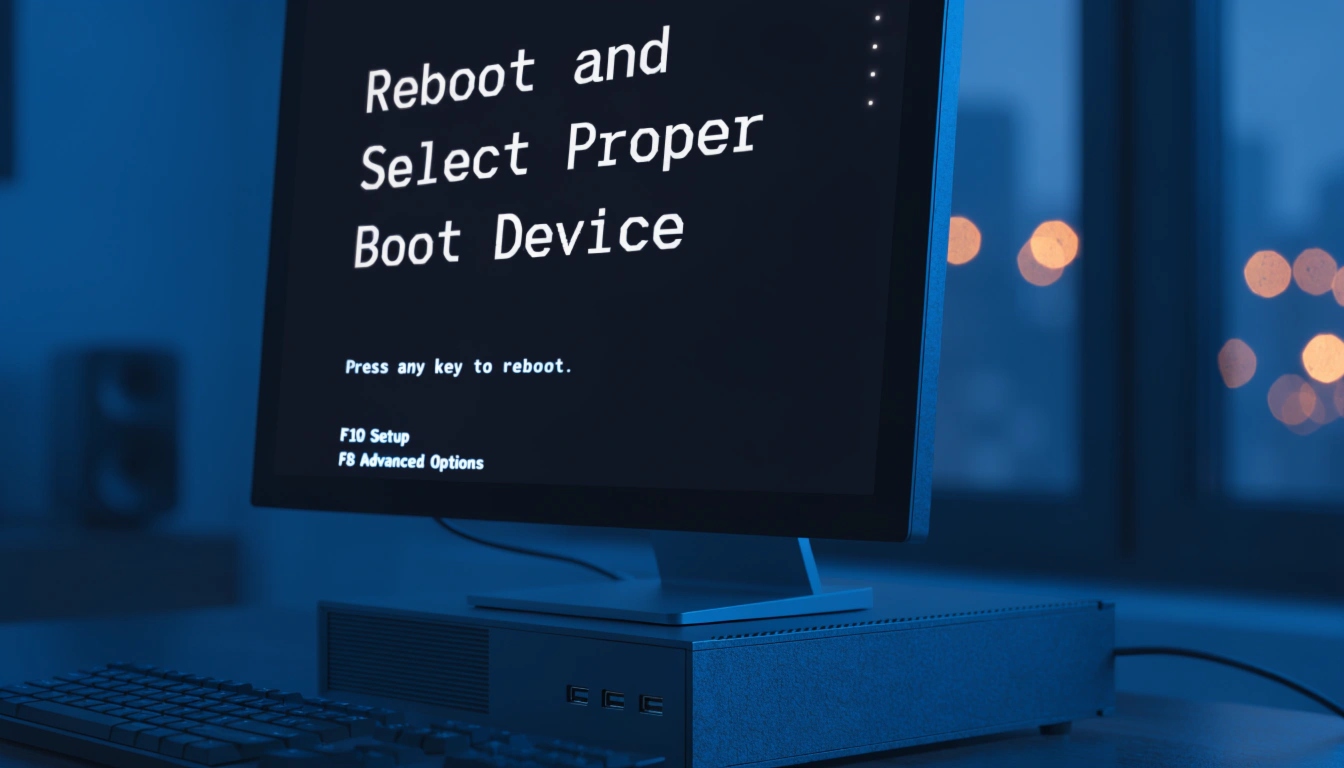
The error message “Reboot and Select Proper Boot Device” appears when a computer cannot find a drive to start the operating system. This usually happens during startup before Windows loads. It means the system does not know where your Windows files are located.
Why This Error Appears on Startup
This error appears when the computer tries to boot but fails to detect a valid boot device. The system checks connected drives but cannot find one with a proper boot file. As a result, the computer stops and shows this message.
Common Causes of the Boot Device Error
There are several common reasons for this problem. The boot order may be incorrect in BIOS. The hard drive or SSD may not be connected properly. Windows boot files may be corrupted. An external USB device may be interrupting the boot process. In some cases, the hard drive may be failing.
Check If the Hard Drive or SSD Is Detected
First, restart your computer and enter BIOS or UEFI settings. Check if your hard drive or SSD is listed there. If the drive does not appear, the system cannot boot from it. This may indicate a connection problem or a damaged drive.
How to Enter BIOS or UEFI Settings
To enter BIOS or UEFI, restart your computer and press the required key during startup. Common keys include Delete, F2, F10, or Esc. The correct key is usually shown briefly on the screen when the computer starts.
Set the Correct Boot Order in BIOS
Inside BIOS, locate the Boot or Boot Order menu. Make sure your main hard drive or SSD is set as the first boot device. Save the changes and exit BIOS. Restart the computer to see if the problem is fixed.
Fix Boot Device Error Using BIOS Settings
You can try resetting BIOS settings to default. This helps if incorrect settings caused the error. After resetting, set the correct boot device again and save the settings before exiting.
Check SATA and Power Cables
If the hard drive is not detected, turn off the computer and unplug it. Open the case and check the SATA and power cables connected to the drive. Make sure they are firmly connected. Loose cables are a common cause of this error.
Remove External USB Devices
Sometimes USB drives, external hard drives, or memory cards interfere with booting. Remove all external devices and restart the computer. If the system boots normally, one of the external devices was causing the issue.
Fix Boot Error Using Windows Startup Repair
If Windows is still not loading, use Windows Startup Repair. Insert a Windows installation USB or DVD and boot from it. Select Repair your computer and choose Startup Repair. This tool automatically fixes common boot problems.
Rebuild Boot Configuration Data (BCD)
If Startup Repair does not work, rebuild the Boot Configuration Data. Open Command Prompt from the repair menu and run boot repair commands. This fixes damaged or missing boot files and often resolves the issue.
Check Disk Errors Using Command Prompt
Disk errors can also cause boot problems. Use Command Prompt to scan the drive for errors. This process checks and repairs file system issues that may prevent Windows from loading.
Update or Reset BIOS Settings
Outdated or corrupted BIOS settings may cause boot errors. Updating BIOS or resetting it to default can help. Only update BIOS if you are sure and follow the manufacturer’s instructions carefully.
When the Hard Drive Is Failing
If none of the solutions work, the hard drive may be failing. Signs include clicking noises, frequent crashes, or the drive not appearing in BIOS. In this case, replacing the drive may be necessary.
Data Recovery Options Before Replacing Drive
Before replacing the hard drive, try to recover your data. You can remove the drive and connect it to another computer using a USB adapter. This allows you to copy important files if the drive is still readable.
Reinstall Windows as a Last Solution
If the drive is working but Windows files are corrupted, reinstalling Windows may be required. This should be the last option because it removes existing data unless backed up.
How to Prevent Boot Device Errors in the Future
To avoid this error in the future, shut down your computer properly, avoid sudden power loss, keep cables secure, update your system regularly, and always eject external devices safely.
Frequently Asked Questions (FAQs)
What causes the “Reboot and Select Proper Boot Device” error?
This error is caused by incorrect boot order, disconnected drives, corrupted boot files, or a failing hard drive.
Can I fix this error without reinstalling Windows?
Yes, in many cases the error can be fixed by correcting boot order, repairing boot files, or reconnecting the hard drive.
Does this error mean my hard drive is dead?
Not always. Sometimes it is a simple settings or cable issue. However, if the drive is not detected, it may be failing.
Is this error related to BIOS?
Yes, incorrect BIOS settings or boot order are common reasons for this error.
Can external USB devices cause this problem?
Yes, bootable USB devices can confuse the system and cause this error during startup.
About the Author